> ## Documentation Index
> Fetch the complete documentation index at: https://productbrain.io/docs/llms.txt
> Use this file to discover all available pages before exploring further.
# Claude
> Use Product Brain with Claude on the web, mobile, and desktop through MCP.
**Early access** — Anthropic connector UI moves between **Connectors** and **Customize**. Remote MCP URL must include `/mcp`. [**Join the Product Brain Community**](https://community.productbrain.io) for Claude-specific threads.
Claude can use Product Brain through the **Model Context Protocol (MCP)**. Pick the path that matches how you use Claude.
## Recommended: Claude web and mobile (Connectors)
This is the approach that works across **Claude on the web, mobile, and desktop** with one setup: add Product Brain as a **remote MCP connector**, then authenticate with your Product Brain API key.
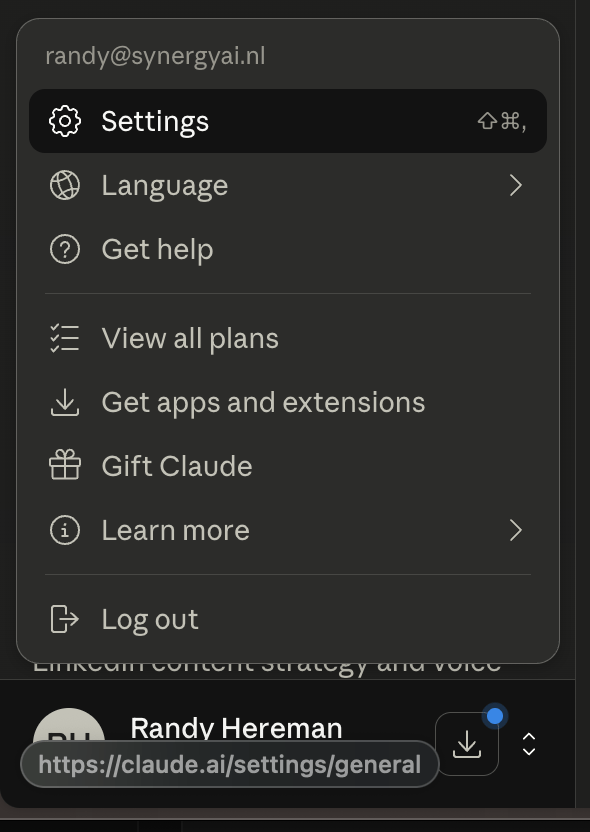
1. Open [Claude](https://claude.ai) and sign in.
2. Open **Settings** (profile menu → **Settings**).
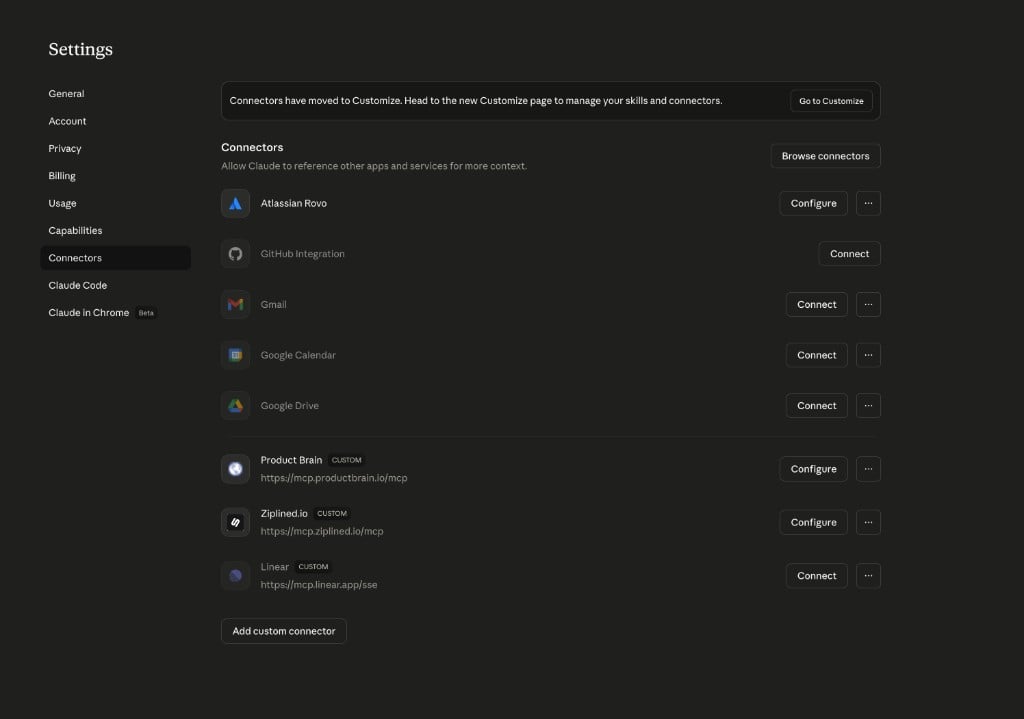
3. Go to **Connectors**. If you see a banner that connectors moved to **Customize**, use **Go to Customize** and manage connectors there—the flow is the same: add a custom remote MCP server.
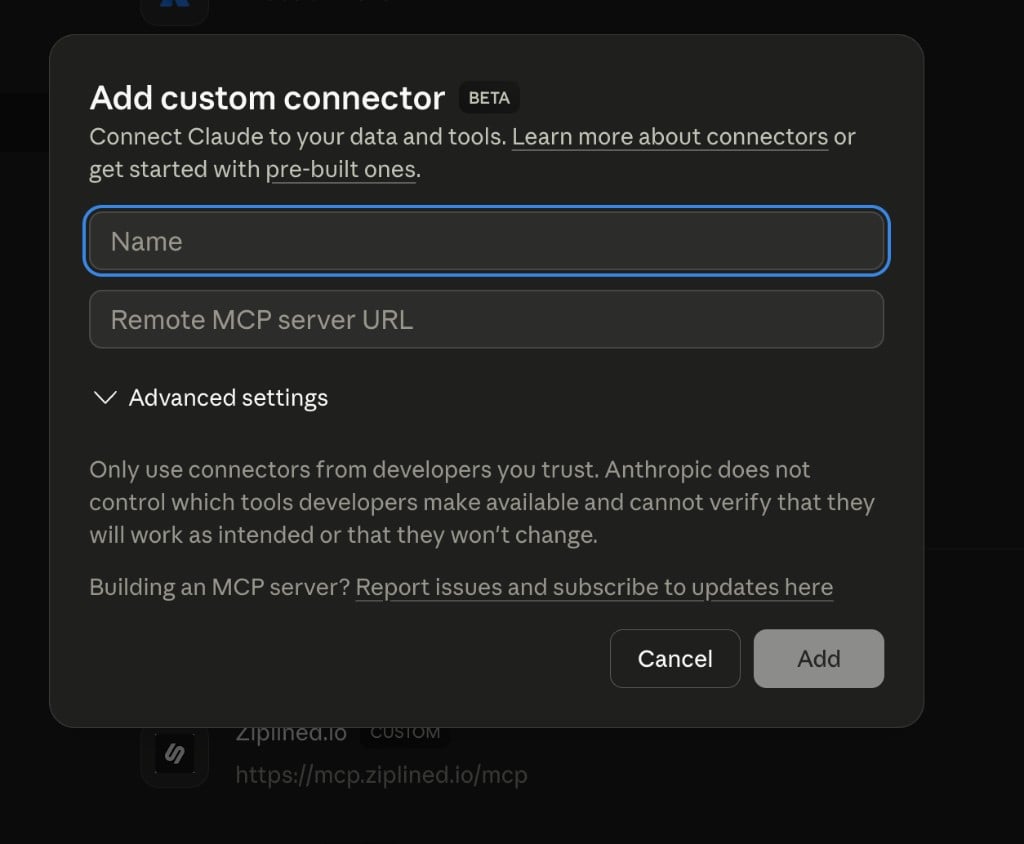
4. Click **Add custom connector**.
5. Fill in:
* **Name:** `Product Brain`
* **Remote MCP server URL:** `https://mcp.productbrain.io/mcp`
6. Click **Add**, then complete authentication with your Product Brain API key when prompted.
 ### API key
Create or copy an API key from Product Brain: open your workspace in the Product Brain app, then **Settings → API keys** (workspace-scoped; keys start with `pb_sk_`).
Hosted documentation cannot link directly to every workspace’s API Keys URL because it includes your workspace slug. We are tracking a **signed-in redirect** so docs can offer one stable link—see **TEN-1660** on the Chain.
### Using the connector in a chat
Start or open a chat in Claude, enable the **Product Brain** connector for that conversation if your client requires it, then ask Claude to orient—for example: “Use Product Brain to orient on this workspace.”
***
## Alternative: Claude Desktop (local JSON)
Use this when you want a **stdio** MCP server on your machine (local `npx` launcher) instead of the remote connector URL—typical for automation or strict local-only tooling.
1. Edit `claude_desktop_config.json` (macOS: `~/Library/Application Support/Claude/claude_desktop_config.json`; Windows: `%APPDATA%\Claude\claude_desktop_config.json`).
2. Add an `mcpServers` entry using `npx` and `@productbrain/mcp@beta` with `PRODUCTBRAIN_API_KEY` in `env`, or run `npx @productbrain/mcp@beta setup` to generate config.
**Important:** **Quit Claude Desktop completely** (e.g. macOS **Claude → Quit Claude** or Cmd+Q) **before** you save changes to the JSON file. Then **edit → save → launch Claude** again. Saving the file while Claude is still running often means tools do not appear until you follow that sequence.
Do **not** add `https://mcp.productbrain.io/mcp` as a **Desktop “URL connector”** inside the Desktop app if your build still routes that through a broken OAuth flow—use **Connectors** on the **web** for the URL, or use **JSON + stdio** on Desktop.
***
## Claude Code
If Claude Code is working in a repository with shell access, ask it to use Product Brain as part of the normal task flow:
```text theme={null}
Use Product Brain to orient for this task, start a session, and capture durable decisions or tensions as we work.
```
Claude Code can translate that into terminal commands when needed.
### API key
Create or copy an API key from Product Brain: open your workspace in the Product Brain app, then **Settings → API keys** (workspace-scoped; keys start with `pb_sk_`).
Hosted documentation cannot link directly to every workspace’s API Keys URL because it includes your workspace slug. We are tracking a **signed-in redirect** so docs can offer one stable link—see **TEN-1660** on the Chain.
### Using the connector in a chat
Start or open a chat in Claude, enable the **Product Brain** connector for that conversation if your client requires it, then ask Claude to orient—for example: “Use Product Brain to orient on this workspace.”
***
## Alternative: Claude Desktop (local JSON)
Use this when you want a **stdio** MCP server on your machine (local `npx` launcher) instead of the remote connector URL—typical for automation or strict local-only tooling.
1. Edit `claude_desktop_config.json` (macOS: `~/Library/Application Support/Claude/claude_desktop_config.json`; Windows: `%APPDATA%\Claude\claude_desktop_config.json`).
2. Add an `mcpServers` entry using `npx` and `@productbrain/mcp@beta` with `PRODUCTBRAIN_API_KEY` in `env`, or run `npx @productbrain/mcp@beta setup` to generate config.
**Important:** **Quit Claude Desktop completely** (e.g. macOS **Claude → Quit Claude** or Cmd+Q) **before** you save changes to the JSON file. Then **edit → save → launch Claude** again. Saving the file while Claude is still running often means tools do not appear until you follow that sequence.
Do **not** add `https://mcp.productbrain.io/mcp` as a **Desktop “URL connector”** inside the Desktop app if your build still routes that through a broken OAuth flow—use **Connectors** on the **web** for the URL, or use **JSON + stdio** on Desktop.
***
## Claude Code
If Claude Code is working in a repository with shell access, ask it to use Product Brain as part of the normal task flow:
```text theme={null}
Use Product Brain to orient for this task, start a session, and capture durable decisions or tensions as we work.
```
Claude Code can translate that into terminal commands when needed.
CLI equivalent
```bash theme={null}
pb orient --task "Describe the work"
pb session start
```
## Write safety
Before asking Claude to make changes, make the expected capture behavior explicit: decisions, tensions, and durable insights should be written back to the Chain.